

Customizing The Membership Welcome Email
There are a few options to send credentials when someone creates their Membership account. You may want to customize this email for your members, so follow these steps to review your options:
Option 1: System-Generated Email Using a Template
Step 1: Navigate to Memberships > Settings > Toggle On the "Send Welcome Email" option.

Step 2: Choose a template from the dropdown list.

Note: You will need to create your own template to create a custom welcome email and the Default Template is not editable or viewable without testing it. You would accomplish this with custom values continue this article to see what this means
Note: This will send an automated email from the system with login credentials to the user when they complete the offer checkout. This email template can be customized and saved within the Email Builder
Step 3: Save your changes.
Option 2: Create a Workflow to Send a Customized Email
Step 1: Navigate to Automation > Workflows
Step 2: Create or edit an existing workflow
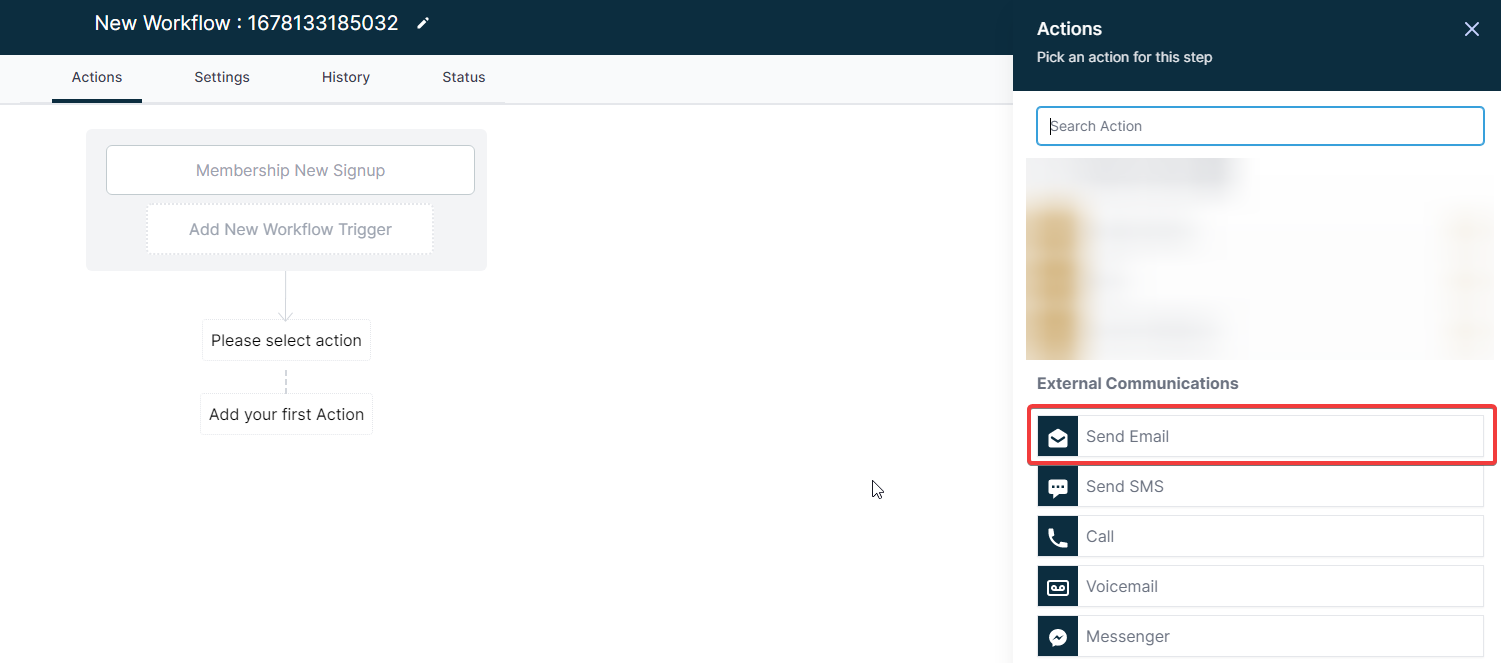
Step 3: Select the “Membership New Signup” Workflow trigger

Step 4: Select send email
Step 5: Enter in the content of your email. You’ll need a From Name, Email, Subject, and you can select a template or use your own content.

Step 6: Note that by using 'Membership New Signup' you now have access to new custom values. These are called Membership Contact and are at the bottom of the Custom Values list right above your unique custom values. Grab both email and password and place them appropriately in the body of your email.

Step 7: If you use Option 2, be sure to toggle off the system-generated email (Option 1). Otherwise both the system-generated template option, and the workflow-customized options will be sent.